Sunday, June 21, 2015

Video : Subtitles and Closed Captions

Some definitions

    • closed captions describe all relevant audio present in the video (fire, rain, birds, gun fights, etc.).
    • subtitles are only for spoken words.
    • The accessibility features of TV programs often propose both options for people with hearing deficiencies. 
    • "WebVTT: The Web Video Text Tracks Format" specification, a format used for defining files that will contain text for captions and subtitles, and much more.
  • <video src="brave.webm">
  •    <track kind=subtitles src=brave.en.vtt
  •           srclang=en
  •           label="English">
  •    <track kind=captions src=brave.en.hoh.vtt
  •           srclang=en
  •           label="English for the Hard of Hearing">
  •    <track kind=subtitles src=brave.fr.vtt
  •           srclang=fr
  •           lang=fr 
  •           label="Français">
  •    <track kind=subtitles src=brave.de.vtt
  •           srclang=de
  •           lang=de
  •           label="Deutsch">
  • </video>

Audio element

1. The <audio> element is useful for embedding an audio player into a Web page. It is dedicated forstreamed audio

2. this article about 10 enhanced HTML5 audio players


  1. <html lang="en"
  2. <body>
  3.   <audio controls="controls">      <source src="https://dl.dropboxusercontent.com/u/1631516/horse.ogg"
  4.               type="audio/ogg" />      <source src="https://dl.dropboxusercontent.com/u/1631516/horse.mp3"
  5.               type="audio/mp3" />
  6.       Your browser does not support the audio element.
  7.       Download the audio/video in
  8.      <a href=”https://dl.dropboxusercontent.com/u/1631516/horse.ogg”>OGG</a>
  9.      or <a href=”https://dl.dropboxusercontent.com/u/1631516/horse.mp3”>MP3</a>
  10.      format.
  11.  </audio>
  12. </body>
  13. </html>

Wednesday, June 10, 2015

Video element

  1. <video width="320" height="240" controls="controls">   <source src="movie.mp4" type="video/mp4" />
  2.    <source src="movie.ogg" type="video/ogg" />
  3.    Your browser does not support the <video> element.
  4. </video>
  • The controls attribute indicates that a control panel with play/stop/volume/progress widgets should be displayed;
  • Usually the browser  will use the first format it recognizes, (in this case, the browser checks whether mp4is supported, and if not, it will check for the ogg format, and so on)
  • You cannot embed a Youtube video using <video> element.  Instead, you often need to embed an <iframe> that will render the HTML5 videos in your Web site, and of course, the advertising that come along with them.
  • The recommended codec that works on most browsers, as of 2015: 
    H264/mp4
  • If the poster attribute is missing, usually the first non-blank frame of the video will be used as the image that is shown when the video is not playing. While this is the expected behaviour, Internet Explorer doesn’t actually do this, it displays the first frame of the video as soon as it can regardless of the poster value
  • Once created or selected using the standard DOM API, can audio and video elements be manipulated as JavaScript objects
  • accessible media player resources and demos
  • Comparison matrix of most of the existing video players
  • 10 recent players compared
  • Unfortunately, the standard control bar cannot be accessed using CSS or the DOM API. Instead, hide the standard controls (ommit the controls attribute) and use your own HTML buttons, sliders, etc. to control the audio or video element using their JavaScript API.

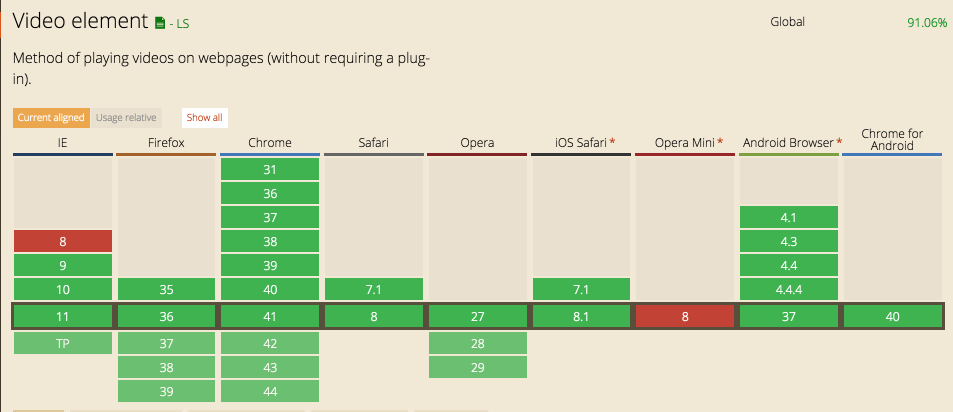
video element support as in 2015


NameDescription
src
Source of the video.
width and height
Size of the video.
If unspecified, the default width and height of the video will be used. If you specify one dimension but not the other, the browser will adjust the size of the unspecified dimension to preserve the aspect ratio of the video.
controls
If this boolean attribute is present, the browser displays its own controls for video playback and volume.
poster
This attribute allows you to specify an image that the browser will use while video is being downloaded, or until the user starts playing the video.
If this attribute is not specified, the first frame of the video will be used instead.
autoplayThis attribute asks the browser to start playing the video automatically as soon as the page is ready.
preload
The preload attribute is used when autoplay is not used. It tells the browser what to do before a user plays a video. This attribute is a hint, the browser may ignore it. While autoplay and preload are mutually exclusive, if both are present, then preload is ignored.
Possible values:
  • none: do nothing. This saves bandwidth, no video will be downloaded in background before a user or a call to the play() method starts playing the video.
  • metadata: download metadata, such as length of the video or its format.
  • auto (default value): the browser will decide. This will depend on the implementation, and on the kind of connection: wifi, 3G, data roaming etc. 
loopAnother boolean attribute that indicates to play the video in loop mode (and it starts again when finished).

http://www.jwplayer.com/html5/

Sunday, June 7, 2015

HTML5 Download

NEW WAY TO DOWNLOAD A FILE USING AN ARBITRARY NAME: THE DOWNLOADATTRIBUTE

HTML5 proposes using a new attribute named download to download resources rather than navigating to them. The example below shows how to trigger the download of an image by the browser (instead of rendering it, which is the default behavior) with a name different from the name of the resource.
  1. <a href="/asset-v1:W3Cx+W3C-HTML5+2015T3+type@asset+block/normal.gif"    download="MichelBuffa.gif">
  2.     download a picture of Michel Buffa
  3. </a>
WARNING: since 2015, and for security reasons, the image should be located on the same domain as the HTML page that contains the link (use a relative URL works well, for example, but linking a page on another domain will not work, it willkeep its original name).

The time element

INTRODUCTION

The <time> element is useful for marking a time or a duration in a document.

It provides both a human readable part (the part between <time> and </time>) and a machine readable part contained within a datetime attribute. Dates are expressed as YYYY-MM-DD.
This machine readable part adds semantics that can be used by search engines for indexing, by browsers or by browser extensions, or by JavaScript code. Useful scenarios include generating alerts for birthdays, automatically adding dates or events that contain <time> elements in a calendar, etc.

THE DATETIME ATTRIBUTE
The datetime attribute can be used for indicating a date/time or a duration.

DURATION VALUES

Duration values use the prefix “P” for “period” as in <time datetime="P4D"> (period = four days).

Using a “T” after the “P” marker allows you to indicate a more accurate duration time: <time datetime="PT4H 6M 12.55S"> is a duration of 4 hours, 6 minutes and 12.55 seconds.

Details and Summary elements

These elements have been introduced for displaying a foldable zone in an HTML document.
In the screenshot below, taken from the W3C specification page, the text next to the horizontal arrow is a<summary> element, and the text displayed when we click on the summary part, is the <details> element. This is a sort of "accordion" with foldable content.

  1. <!DOCTYPE html>
  2. <html>
  3. <body>
  4. <details>
  5.     <summary>
  6.         How to beat the boss...spoiler alert !
  7.     </summary>
  8.        <p> Just aim to the red spots near his eyes</p>
  9.        <p>Keep shooting at these spots until the eyes open, then hit
  10.        quickly both eyes with your laser beam.</p>
  11. </details>
  12. </body>
  13. </html>

Saturday, June 6, 2015

Tools

1. jsbin.com

2. Google HTML5 Outliner

3.  http://jsbin.com/binuxo/1/edit -  This example is a simple document, with a hyperlink that, once clicked, displays the table of contents in an <aside> element in the main <section>

4. the W3C conformance checker

5. Polyfills:

http://caniuse.com/http://html5please.com/

http://modernizr.com/ 

6.  the Google page about rich snippets and structured data

7. Live Microdata Web site

8. Microdata generators
http://miageprojet2.unice.fr/Intranet_de_Michel_Buffa/Outils_de_validation_HTML5%2F%2Fextensions_de_navigateurs

9. http://www.w3.org/developers/tools

10. http://www.w3.org/2009/cheatsheet/

11. Validation tools

W3C VALIDATOR

The W3C validator checks the markup validity of Web documents in HTML, XHTML, SMIL, MathML, etc.

CSS VALIDATOR

The CSS validator checks Cascading Style Sheets (CSS) and (X)HTML documents that use CSS stylesheets.

UNICORN

Unicorn is W3C's unified validator, which helps people improve the quality of their Web pages by performing a variety of checks. Unicorn gathers the results of the popular HTML and CSS validators, as well as other useful services, such as Internationalization, RSS/Atom feeds and http headers.

LINK CHECKER

The W3C Link Checker looks for issues in links, anchors and referenced objects in a Web page, CSS style sheet, or recursively on a whole Web site. For best results, it is recommended to first ensure that the documents checked use Valid (X)HTML Markup and CSS.

12. Video encoding software

Handbrake (free, open source) or Super (free).

13. Video download helper

VideoDownloadHelper (for Firefox)

14. Creating subtitles

http://www.universalsubtitles.org, also known as http://www.amara.org.